3.2. SCP dock
3.2.1. Simplified SCP dock
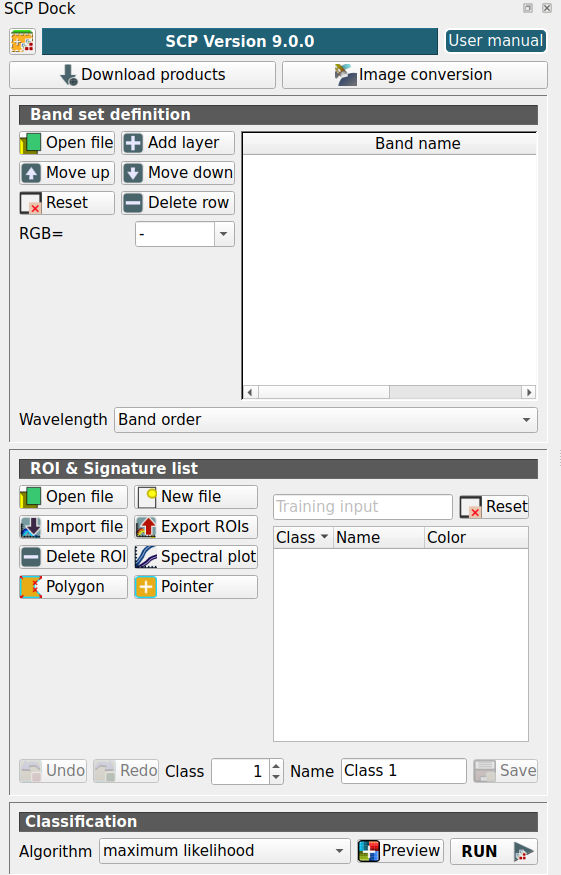
Simplified SCP dock
A Simplified interface is loaded after the first installation of the plugin. It is especially designed for new users in order to ease the classification process, from the definition of input images to executing the classification algorithm.
Tüyo
The Complete interface can be loaded from the settings in the SCP menu, by deselecting Simplified interface and restarting QGIS.
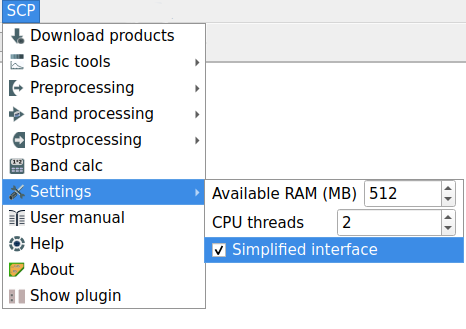
SCP menu with activated option for the simplified interface
The SCP includes tools for downloading and preprocessing satellite images. The interface includes buttons for opening the following tools:
|
open the tab Download products |
|---|---|
|
open the tab Preprocessing |


3.2.1.1. Band set definition
Image input in SCP is named band set, and it is saved with the QGIS project. It is recommended to load single band raster in a Band set.
The section Band set definition includes the following tools:
Tool symbol and name |
Description |
|---|---|
|
open file explorer and add raster files (preferably single band raster) to the band set |
|
open a window to select single band rasters already loaded in QGIS and add them to the band set |
|
move highlighted bands upward |
|
move highlighted bands downward |
|
clear all bands from band set |
|
remove highlighted bands from the band set |
|
select a Color Composite that is applied to
the Band set (complete interface) and displayed in the map; new color composites
can be entered typing the band numbers separated by |
Wavelength |
rapid definition of band center wavelength for the following satellite sensors such as Band order (integer values), Landsat 8 OLI, Sentinel-2 |


Tüyo
The Band set is also called active band set. The Complete interface allows for the creation of multiple band sets that can be used in other tools.
3.2.1.2. ROI & Signature list
ROIs are polygons used for the definition of the samples of land cover classes that are used by the classification algorithms. The SCP manages the ROIs by creating a file named Training input.
The Training input stores the ROI polygons and spectral signatures; depending on the algorithm, the training could be performed using ROI polygons (e.g., Random Forest) or spectral signatures (e.g., Spectral Angle Mapping). The Training input is displayed in QGIS as vector file.
Uyarı
In order to avoid data loss, do not edit the vector Training input using the QGIS tools. Use only the tools of SCP for managing the Training input.
SCP allows for the creation of temporary ROI polygons using a region growing algorithm or drawn manually with the tools provided in the Working toolbar (complete interface). These are temporary ROI polygons because the ROI creation is an interactive process, and one can refine the geometry according to photointerpreation. Then, one can save temporary ROI polygons in the Training input which is the actual input for classifications.
The Training input is composed of a vector part that stores the geometries and a spectral signature part, which are managed by SCP. A temporary layer is added to QGIS but the actual file is saved and modified during the editing in SCP.
The section ROI & Signature list includes the following tools:
Tool symbol and name |
Description |
|---|---|
|
open a training input file; ROIs and spectral signatures are loaded in ROI & Signature list; the vector part of the training input is loaded in QGIS |
|
create an empty training input file ( |
Training input |
it displays the path to the training input file |
|
remove the training input |
|
open the tab Import signatures |
|
open the tab Export signatures and export highlighted items |
|
delete highlighted ROIs |
|
show the ROI spectral signature in the Spectral Signature Plot; spectral signature is calculated from the Band set (complete interface) |
|
activate the pointer to create a temporary ROI by drawing a polygon in the map; left click on the map to define the ROI vertices and right click to define the last vertex closing the polygon |
|
activate the pointer to create a temporary ROI using the region growing algorithm; left click on the map for creating the ROI |
|
undo of ROI creation from the Training input; it is possible to undo a maximum of 10 actions |
|
redo ROI creation in the Training input |
Class |
ROI class identifier |
Name |
ROI class name |
|
save the temporary ROI to the Training input using the defined classes and macroclasses; ROI is displayed in the ROI & Signature list |


The tree list ROI & Signature list has the following fields:
Class: Class value used for classification; it can be edited with a single click
Name: Class Name; it can be edited with a single click
Color: Class color; double click to select a color for the class that is used in the classification
3.2.1.3. Classification
In SCP, land cover classes (and ROIs) are defined with a system of Classes. Each Class is identified by a value and a Name, but only the Class value is used for the classification process.
The classification can be performed for the entire image (see Algorithm) or for a part of it creating a Classification preview.
The section Classification includes the following tools:
Tool symbol and name |
Description |
|---|---|
Algorithm |
select a classification algorithm (additional parameters can be defined in Classification) |
|
activate the pointer for the creation of a Classification preview; left click the map to start the classification process and display the classification preview |
RUN |
select an output and run the classification |


This tool allows for the selection of one the following classification algorithms:
3.2.2. Complete interface
The Complete interface is designed for experienced users, and provides access to all the tools offered by the SCP. The Complete interface can be loaded from the settings in the SCP menu.
The Training input is composed of a vector part that stores the geometries and a spectral signature part, which are managed by SCP. A temporary layer is added to QGIS but the actual file is saved and modified during the editing in SCP.
In SCP, land cover classes (and ROIs) are defined with a system of Classes (Class ID) and Macroclasses (Macroclass ID) (see Classes and Macroclasses) that are used for the classification process; each Macroclass ID is related to a Macroclass Information (e.g. macroclass name) and each Class ID is related to a Class Information (e.g. class name), but only Macroclass ID and Class ID are used for the classification process.
The use of the Macroclass ID or Class ID for classifications is defined with the option Use MC ID or C ID in the Algorithm. Using Macroclass ID instead of Class ID is useful to group materials that belong to the same land cover class but have spectral signatures that are distant enough to be considered as different materials (e.g., different types of vegetation).
Spectral signatures of classes are calculated from the ROIs or can be imported from other sources (see Import signatures). It is worth pointing out that classification is always based on spectral signatures.
3.2.2.1. Home
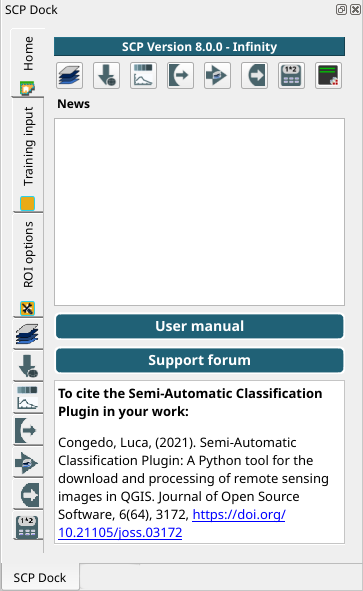
Home
The left side of SCP dock contains buttons for accessing the main functions of SCP. The tab Home contains the buttons for accessing the main functions of SCP:
|
|
|
|
|
|
|
|
|
|
|
|
|
|
|


3.2.2.1.1. SCP news
This section displays news about the SCP and related services. News are downloaded on startup (internet connection required). It can be enabled or disabled in the settings Settings.
3.2.2.2. Training input
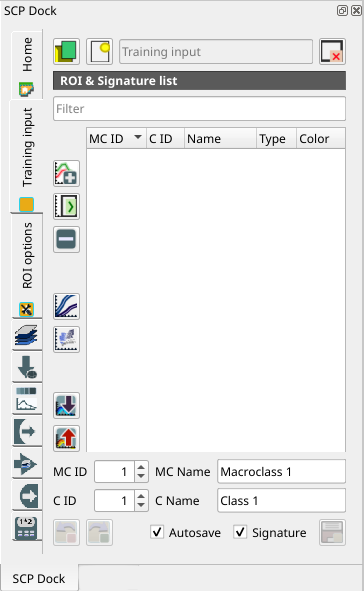
Training input
This tool allows for the creation of the training input file (.scpx )
required for storing ROIs and spectral signatures.
The training input file is created according to the characteristics of the
active band set defined in Band set (complete interface).
A new training input file should be created for every band set,
unless the band sets have the same spectral characteristics and
coordinate reference system.
Tool symbol and name |
Description |
|---|---|
|
open a training input file; ROIs and spectral signatures are loaded in ROI & Signature list; the vector part of the training input is loaded in QGIS |
|
create an empty training input file ( |
Training input |
it displays the path to the training input file |
|
remove the training input |
The training input is displayed in QGIS as vector file. ROIs and spectral signatures are displayed in the ROI & Signature list.
Uyarı
In order to avoid data loss, do not edit the vector Training input using the QGIS tools. Use only the tools of SCP for managing the Training input.
3.2.2.2.1. ROI & Signature list
The tab ROI & Signature list displays the ROI polygons and spectral signatures contained in the training input file. The tab ROI & Signature list is structured as tree list, where every ROI is grouped in the corresponding Macroclass.
A filter for names can be defined in Filter  .
.
The tree list ROI & Signature list has the following fields:
MC ID: Macroclass ID is the root of corresponding ROIs and signatures; it can be edited with a single click; if the ID of a spectral signature is set 0, then pixels belonging to this signature are labelled as unclassified; every listed ROIs or signatures has a selection checkbox (only the spectral signatures checked in this list are used for the classification process);
C ID: Class ID; it can be edited with a single click;
Name: Macroclass and Class Name; it can be edited with a single click;
- Type: type of the item:
R = only ROI polygon;
S = only spectral signature;
RS = both ROI and spectral signature;
Color: C ID color; double click to select a color for the class that is used in the classification;
Changes in the ROI & Signature list are applied to the
file Training input only when the QGIS project is saved
(but there is also the option  Autosave).
ROIs can be edited, deleted and merged from this list.
Autosave).
ROIs can be edited, deleted and merged from this list.
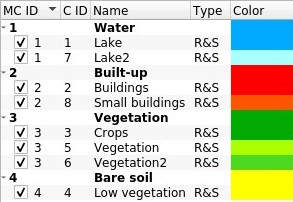
ROI & Signature list example
Tüyo
According to Algorithm, classifications performed using C ID have the colors defined for classes in the ROI & Signature list; classifications performed using MC ID have the colors defined for the macroclasses.
If an item is a ROI polygon, double click the item to zoom to that ROI in the map. Items in the list can be highlighted with the mouse left click.
Tüyo
ROIs and spectral signatures can be imported from other sources (see Import signatures) and exported (see Export signatures).
The following tools are available:
Tool symbol and name |
Description |
|---|---|
|
merge highlighted spectral signatures or ROIs obtaining a new signature calculated as the average of signature values for each band (covariance matrix is excluded) |
|
calculate spectral signatures of highlighted ROIs using the active band set in Band set (complete interface) |
|
delete highlighted ROIs and signatures |
|
show the ROI spectral signature in the Spectral Signature Plot; spectral signature is calculated from the Band set (complete interface) |
|
add highlighted ROIs to the Scatter Plot |
|
open the tab Import signatures |
|
open the tab Export signatures and export highlighted items |


ROI & Signature list is complementary to the Working toolbar (complete interface) and it allows for saving ROIs to the Training input defining classes and macroclasses. A Band set (complete interface) must be defined before the ROI creation, and ROI polygons must be inside the area of the Band set.
Tool symbol and name |
Description |
|---|---|
MC ID |
ROI Macroclass ID |
MC Name |
ROI Macroclass Name |
C ID |
ROI Class ID |
C Name |
ROI Class Name |
|
undo of ROI creation from the Training input; it is possible to undo a maximum of 10 actions |
|
redo ROI creation in the Training input |
|
if checked, automatically save the ROI & Signature list to the Training input every time a ROI is saved |
|
if checked, while saving a ROI, the spectral signature thereof is calculated (from Band set (complete interface) pixels under ROI polygon) and saved to Training input (calculation time depends on the band number of the active band set in Band set (complete interface)) |
|
save the temporary ROI to the Training input using the defined classes and macroclasses; ROI is displayed in the ROI & Signature list |
3.2.2.2.2. Right click menu
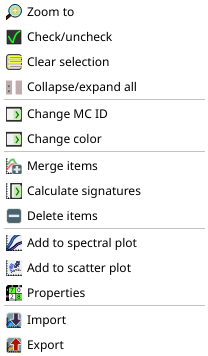
Right click menu
A right click on ROI & Signature list allows for opening a menu containing several functions to manage ROIs and spectral signatures.
Tool symbol and name |
Description |
|---|---|
|
zoom to highlighted items (if ROI polygons) in the map |
|
check or uncheck highlighted items |
|
clear selection of highlighted items |
|
collapse or expand all macroclasses |
|
edit the macroclass of highlighted items (using the
value MC ID |
|
select a color for the highlighted items; if a macroclass is selected, the function is performed to all the included items |
|
merge highlighted spectral signatures or ROIs obtaining a new signature calculated as the average of signature values for each band (covariance matrix is excluded); if a macroclass is selected, the function is performed to all the included items |
|
calculate spectral signatures of highlighted ROIs using the active band set in Band set (complete interface); if a macroclass is selected, the function is performed to all the included items |
|
delete highlighted ROIs and signatures; if a macroclass is selected, the function is performed to all the included items; |
|
show the ROI spectral signature in the Spectral Signature Plot; spectral signature is calculated from the Band set (complete interface); if a macroclass is selected, the function is performed to all the included items |
|
add highlighted ROIs to the Scatter Plot; if a macroclass is selected, the function is performed to all the included items |
|
show the properties of highlighted items; |
|
open the tab Import signatures |
|
open the tab Export signatures and export highlighted items |


3.2.2.3. ROI options
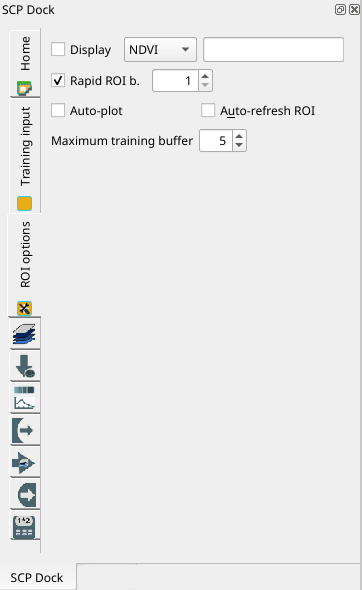
ROI options
ROI options are useful for displaying pixel values or improving the creation of ROIs.
Tool symbol and name |
Description |
|---|---|
|
if the ROI creation pointer is active (see Working toolbar (complete interface)), the pixel value of selected vegetation index is displayed on the map; vegetation indices available in the combo box are: NDVI (Normalized Difference Vegetation Index); EVI (Enhanced Vegetation Index); Custom (use the custom expression defined in the following line) |
|
set a custom expression; expression is based on the Band set and bands such as band 1 is referred to as “b1”, band 2 as “b2” and so on; also reference to band names such as “#NIR#” or “#RED#” can be used |
|
if checked, temporary ROI is created with region growing using only one Band set (complete interface) band (i.e.region growing is rapider); the band is defined by the Band set number; if unchecked, ROI is the result of the intersection between ROIs calculated on every band (i.e. region growing is slower, but ROI is spectrally homogeneous in every band) |
|
calculate automatically the temporary ROI spectral signature and
display it in the Spectral Signature Plot ( |
|
calculate automatically a new temporary ROI while Region growing parameters in the Working toolbar (complete interface) are being changed |
Maximum training buffer |
defines the maximum number of action for undo and redo ROIs; the higher is the number, the more is the required memory |